April Showers Bring May...Features!
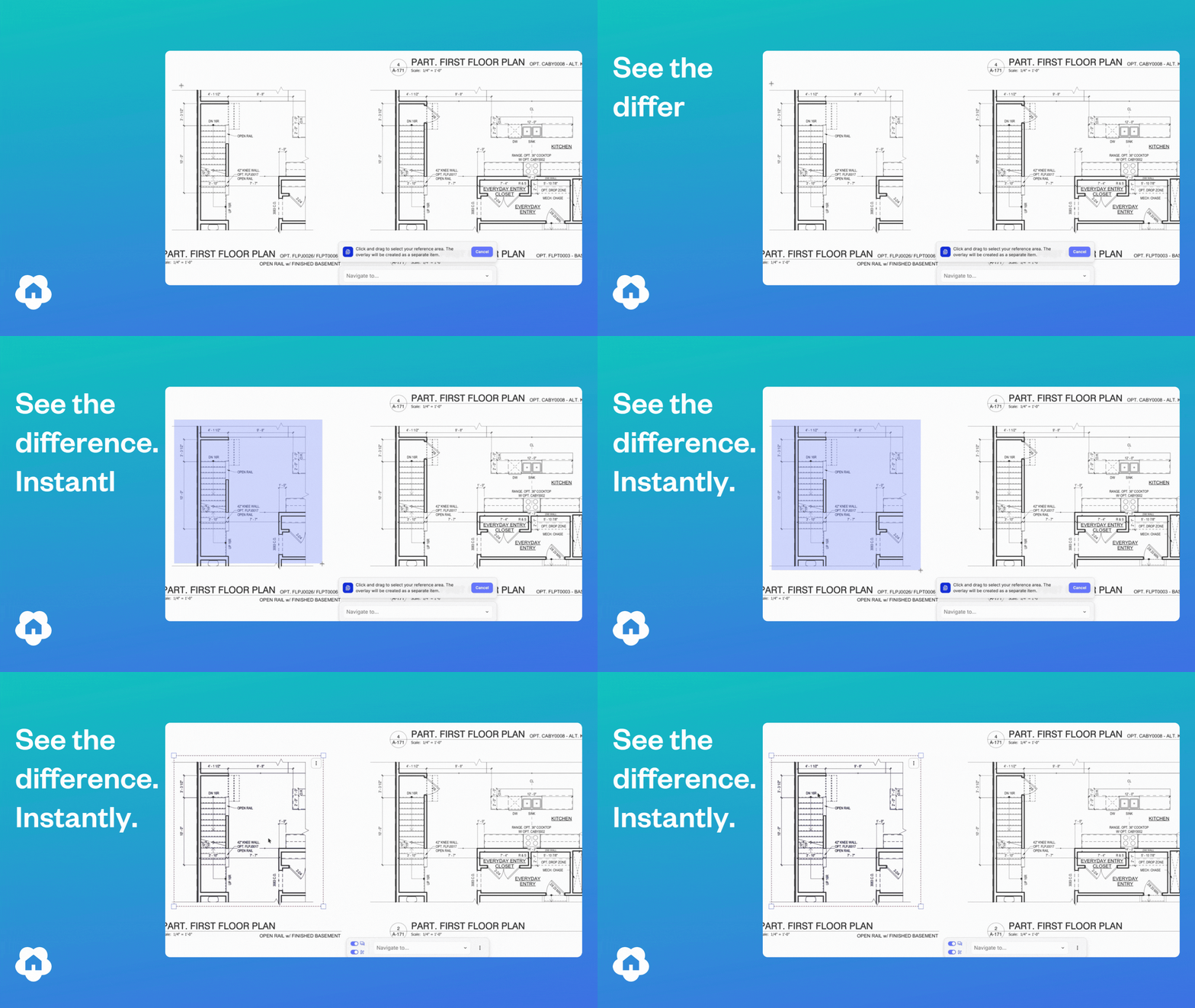
📢 Overlay Tool is Here!
The Digs Overlay Tool, is a powerful new way to visualize your plans, now available across Digs. For Pro & Enterprise users, The Overlay Tool lets you drop a semi-transparent region directly onto any floor plan — perfect for comparing plan versions, highlighting scope areas, quickly seeing differences or calling out exactly what matters in a review.
Three modes for every workflow. Switch between display modes depending on what you're trying to see:
Colorized — tint and outline a region in any color to make it pop
Comparative — layer overlays against the base plan or plan versions to validate measurements and differences with color differentiation. If things are different, it turns blue!
Opaque — block out regions cleanly when you need a solid fill or show how a plan option looks on a base home
📣 Expanded Color Picker
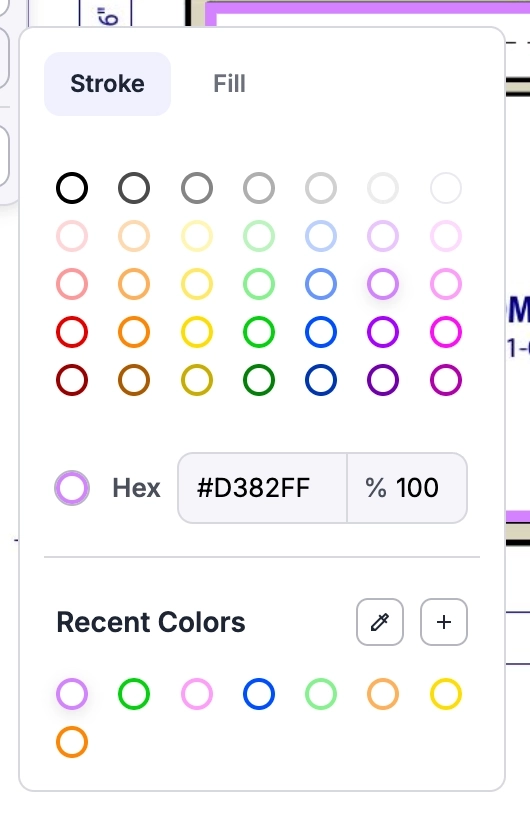
When we say we value customer feedback, we mean it. We heard loud and clear that an expanded color picker was crucial to the experience, so we delivered. The new color picker shows up wherever you set color in Digs, on project plans, in documents, and in the layers panel, looking and behaving the same way every time and remembering your colors no matter where you open it.
Pick from 35 standard colors — Open the picker and choose from a curated palette of 35 neutrals, primaries, and pastels, with tabs to switch between fill and stroke without closing the picker.
Enter an exact color with hex — Enter a hex code directly into the input and type in opacity from 0–100%, with a red indicator that flags any typos so nothing breaks and nothing closes.
Sample any color on screen with the eyedropper — Click the eyedropper, then click anywhere in Digs to instantly grab a color from any drawing, stamp, or layer, no hex hunting required.
✅ eSignature Improvements
A couple of quality-of-life updates have been added to the Digs eSignature process. In both cases, you can find them by locating the eSign you want and clicking the three kebab dots on the far right.
Correct a recipient. You can now update the recipient's name and email address. Handy for fixing typos, and you can also use it to redirect the document to a different signer if you sent it to the wrong person.
Cancellation reason. When you cancel a signature, there's now a spot to note who cancelled it and why. The note stays attached for later reference. Hover over the Cancel status to see the reason for a given cancellation.
👀 In Case You Missed It
ICYMI: Public share files and folders
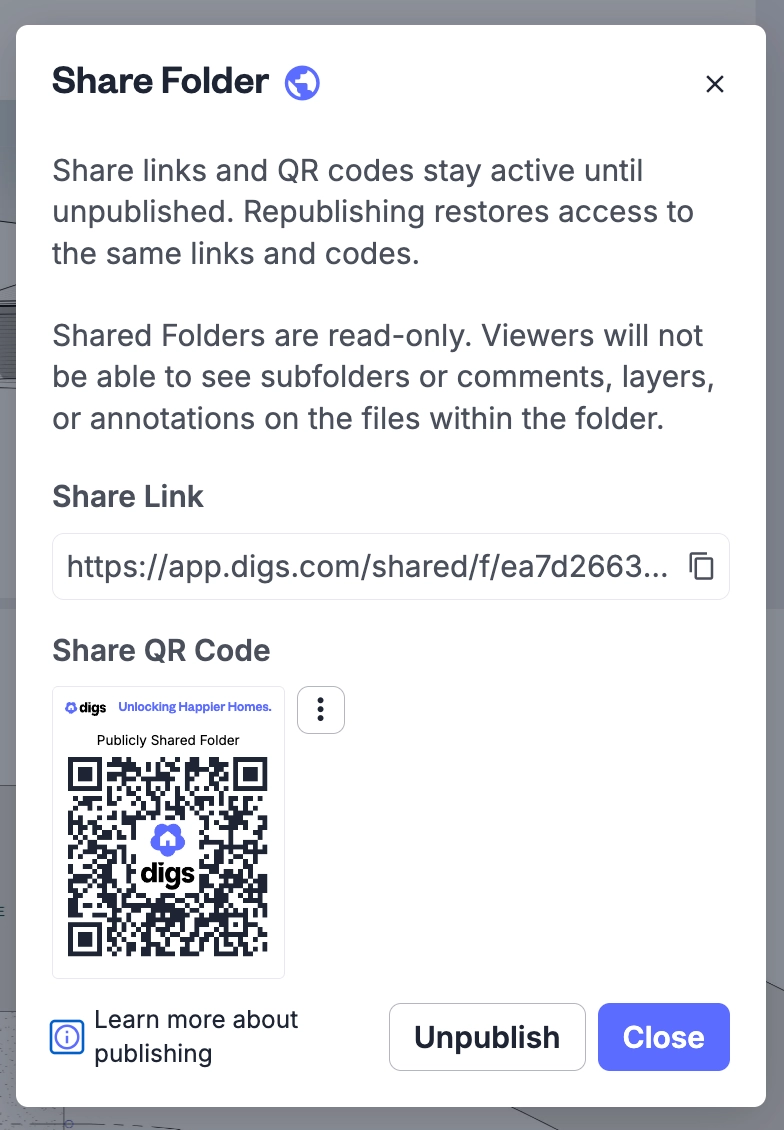
A while back we shipped public sharing. If you missed it, here's the gist: any file or folder in Digs can be shared through a URL or QR code, and whoever you send it to doesn't need a Digs account to open it.
Folders are the fun part. When you update a file inside a shared folder, the link keeps pointing to the latest version. No re-sending, no "wait, is this the new one?"
Handy for the field. Print the QR, stick it on the trailer wall or in the plan binder, and anyone on site can pull the latest drawings, specs, or selections. Subs who aren't in Digs still get what they need. Inspectors can grab a doc on the spot. Your PM stops emailing the same files three times a week.
Try it out Here - Or scan the QR code below!
💰 Supplement your summer with cash referrals!
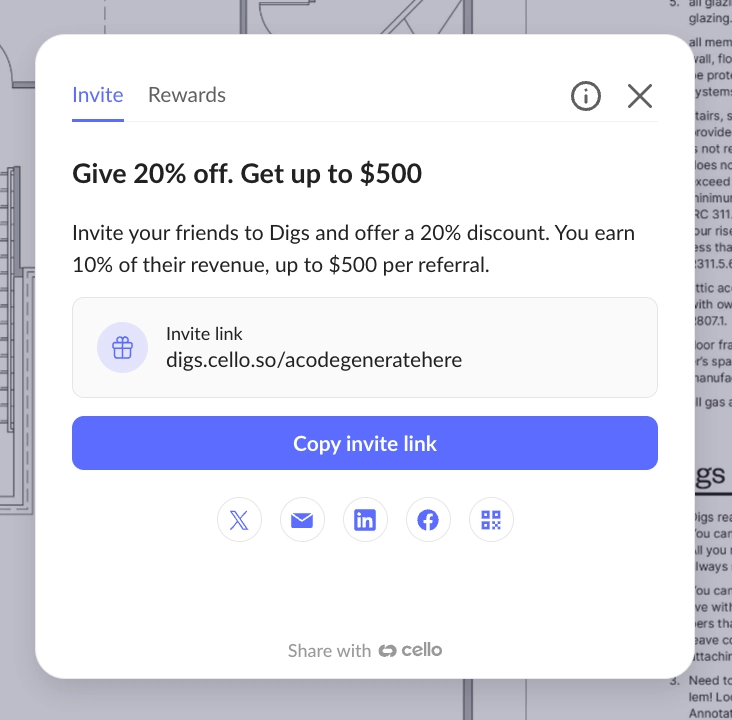
Lots of teams forget Digs has a referral program! The “Refer and Earn” program is stashed in the top right of our application under the “Gift Icon”.
Copy your Invite link and share it with teams you know could benefit from Digs. Drop a link on socials using the quick post buttons.
The details are easy:
You give a Discount to them when they purchase Pro users This is not the same as inviting collaborators to your projects - These would be new companies who are looking for tool solutions like Digs.
You Earn cash from these signups - Every Referred company who purchases Digs is a separate $500 referral cap Example - Bob the Painter signs up using your Invite and buys 2 user seats, you would earn a $25 bounty from Bobs first purchase, then 10% of Bob’s Dig spend each month until you hit $500. If he adds more users each month, you hit that cap faster, and he gets to keep using the 20% discount 😎. Repeat this with more companies and you start new referral caps. Easy!.
Learn more here and start getting some BBQ money!
💡 Did you know?
⚡ Pro Tip: Skip folder hunting! Use Search in plain language. Type something like "kitchen faucet" or "HVAC manual" and Digs surfaces the document, we recognize and index all document text in the background as you upload.
⚡ Pro Tip: Supplement documents with photos! Snap a photo of the data plate on every appliance and piece of equipment. This simple action is one of those game change moments when a warranty issue arises and your customer does not need to go search that info out. Stored this named image (eg. Whirlpool Dishwasher Data Plate.jpg) in the same Digs folder as the matching manual or warranty.
⚡ Pro Tip: Assign vendor installations as you go Part of the Digs value is about future proofing - Attribute each item in the handoff to the sub who actually installed it. Should the dishwasher leaks in year two, the homeowner pings your plumber directly with the right context, instead of calling your office and pulling you off a job to track down a phone number.